Window Modes
Bento Box
Bento Box is one of three Window Modes. Set a monitor to Bento Box and BetterStage automatically arranges its windows into a non-overlapping grid — rebuilt in 1.0 with direct drag interactions, drop-to-swap, drop-on-edge insert, and live resize previews.
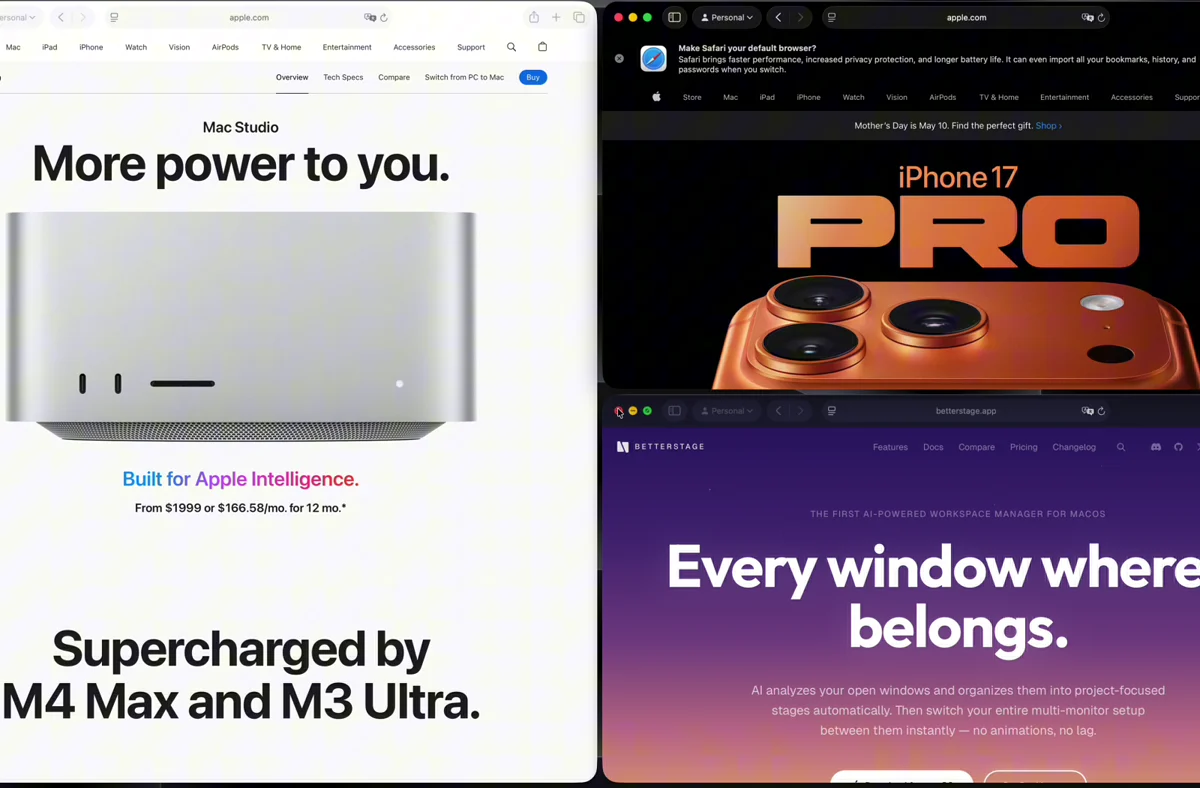
Activating Bento Box
Bento Box is a per-monitor mode. Set a monitor to Bento Box from:
- The Snap Wheel→ Window Modes submenu
- The BetterStage menu bar→ Window Modes section
- Settings > Window Modes for the default mode applied to new monitors
When a monitor is in Bento Box, snap zones on that monitor are routed through the tiling engine instead of floating windows over the grid.
Direct Interactions
Bento Box in 1.0 reads like a normal window manager. Everything you'd expect to do by dragging just works.
Drag handles or window borders
Drag the handle between two tiles, or grab a tiled window's thin outer border, to resize linked neighboring windows together. Affected panes render as lightweight glass previews during the drag so the layout stays smooth at any size.
Drop-to-swap
Drag one window onto another and release. The two windows swap tiles without disturbing the rest of the grid.
Drop-on-edge insert
Drop a window on the edge of an existing tile to split that tile and insert the new window as its left, right, top, or bottom neighbor.
Cross-monitor drops
Drag a window from any monitor — native, Bento, or tabbed — into a Bento monitor and it lands in the spot you dropped it. Pull one back out and it leaves the layout cleanly.
Fill and restore
Need one window front-and-center? Fillgrows the focused window to take over its monitor while its neighbors shrink to slivers at the edges. It's reversible — Fill again and the window drops right back into the tile it came from, with the grid exactly as you left it.
Fill is the Bento Box action of the Snap Wheel's adaptive Full slice, and of the Maximize shortcut (default Ctrl+Opt+Return).
Live Resize Previews
During a divider drag, Ghost Frame Preview in Settings > Window Modesshows the affected panes as translucent glass instead of live windows. Turn the preview off to update windows live as you drag. Releasing the drag commits the layout in one frame so apps don't resize step by step.
The same Resize Interaction section lets you set the visible divider width from 4 to 24 px. BetterStage keeps the invisible grab area three times wider so narrow dividers remain easy to catch.
Grid Settings
Configure the grid in Settings > Window Modes > Bento Box.
Gap Size
Pixel gap between tiled windows. A gap of 0 means windows sit edge-to-edge.
Float in Window Modes
Some apps don't play well inside a tiled grid — browser session-restore prompts, color pickers, popovers, and small utility windows. Add them to Settings > Exclude Apps > Float in Window Modes and Bento Box (and Tabbed Layout Mode) will leave them alone. They float freely above the grid.
You can also flip the ignore toggle for the focused app from the Snap Wheel without leaving your flow.
Pinned Displays
Bento Box now works fully on Pinned Displays. Dragging, snapping, filling, resizing, and reordering all behave the same as on a regular monitor — and the layout is restored when monitors disconnect, reconnect, or wake from sleep.
Retile
Most of the time you won't need to retile manually — Bento Box reflows whenever windows open, close, or move. If the layout drifts after a sleep, monitor change, or app crash, press Opt+Down to rebalance the BSP tree on the active stage, or pick Retile from the Snap Wheel.
Closing Electron windows also removes their ghost tabs or stale tiles promptly, then reflows the remaining layout even when macOS briefly keeps an old window record around.
Next
Tabbed Layout Mode