Window Management
Snap Wheel
The Snap Wheel is a radial popup menu for quick window actions. Trigger it on any window to snap, send to a stage, switch the monitor's Window Mode, run AI Staging, or open Settings — all without memorizing keyboard shortcuts. Choose Glass or Classic, customize both rings, and add your own SF Symbol icons. Built-in submenus cover modes, Stages, workspaces, and more actions; Experimental Pro features add Custom Actions and your own outer-ring submenus.
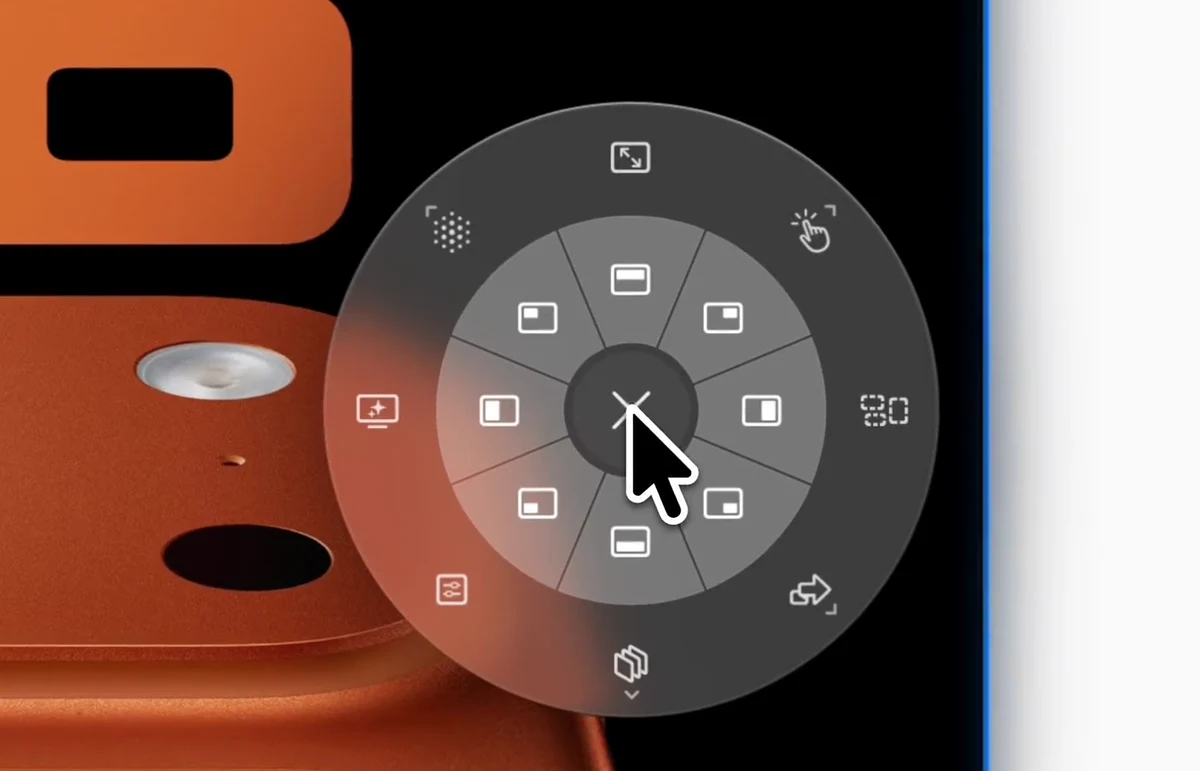
Enhanced Native
Inner ring snaps the window to a half or quarter of the display. More Actions also includes Center and Window Behavior. Outer ring: Window Modes, Stages, Saved Workspaces, and custom submenus.
Trigger Options
Out of the box BetterStage activates the wheel on a middle-click or a four-finger trackpad tap. Add more from Settings > Snap Wheel — every trigger you add works simultaneously, and each one can run in hold or toggle mode.
Middle-Click Toggle
DefaultMiddle-click anywhere to open the wheel, then move freely and left-click to select. Middle-click again to dismiss and re-show at a new position.
4-Finger Tap Toggle
DefaultTap with four fingers on a Magic Trackpad to open the wheel at the cursor. Left-click or tap again to select.
Other Trackpad Gestures
Add any of three more Magic Trackpad gestures from Settings → Snap Wheel → Activation triggers: 5-finger tap, 4-finger click, or 5-finger click.
Middle-Click Hold
Click and hold the middle mouse button on a window. Drag to select, release to apply.
Ctrl+Opt Hold
Hold Ctrl+Opt to summon the wheel at your cursor after a configurable delay. Release to apply, or left-click to commit.
Custom Trigger
Define your own trigger in Settings — a key combo, a modifier-only shortcut, or a mouse button. Keyboard and mouse triggers can each use hold or toggle mode.
Workspace Submenu
The default Workspace slice contains AI Staging, Load Workspace, and Save Workspace. It keeps workspace-level actions together without consuming three outer-ring slots.
Wheel Layout
The wheel has two layers: an inner ring for snap zones, and an outer action fan with expandable submenu pills. Hover over a fan slice to reveal its submenu.
Inner Ring
Halves & Quarters (8 default slots)
By default the inner ring is filled with the 4 halves (top, right, bottom, left) and 4 quarters (top-right, bottom-right, bottom-left, top-left). In TabStack those slots show directional arrows that move the window into the adjacent pane. Every slot is reassignable.
Full
Outer Ring — 12 o'clock
One adaptive slice that follows the monitor's Window Mode: full screen in Enhanced Native, or Fill/Zoom Pane in TabStack according to the current pane layout. The action is reversible — triggering its restore state brings the layout back.
More Actions
Outer Ring — 1:30 — Submenu
Hover to expand. Defaults include Choose Layout, Reflow as Grid, Save Layout, Re-stack, Raise Floats, Center, thirds, two-thirds, and Window Behavior. Unavailable actions explain why they cannot run without rewriting a customized wheel.
Retile
Outer Ring — 3 o'clock
Balance and reconform the active TabStack pane tree; in Enhanced Native, arrange or re-stack the free-floating desk.
Send to Stage
Outer Ring — 4:30 — Submenu
Hover to expand: each existing stage plus a "+" tile to send the window to a brand-new stage.
Switch Stage
Outer Ring — 6 o'clock — Submenu
Hover to expand: switch to another stage without moving the window. The current stage is hidden from the list.
Settings
Outer Ring — 7:30
Open BetterStage Settings.
Workspace
Outer Ring — 9 o'clock — Submenu
Hover to expand: run AI Staging, load a Saved Workspace, or save the current workspace.
Window Modes
Outer Ring — 10:30 — Submenu
Hover to expand and switch the current monitor between Enhanced Native and TabStack. The slot label shows the active mode so you always know what's on this monitor.
More Actions Submenu
The More Actions slice expands into these default actions:
- Choose Layout — Apply a saved TabStack layout. Hidden outside TabStack.
- Reflow as Grid — Reorganize the current TabStack panes into a balanced grid. Hidden outside TabStack.
- Save Layout — Save the current TabStack as a reusable preset. Hidden outside TabStack.
- Re-stack — Stack the monitor's windows into a centered deck. Enhanced Native only.
- Raise Floats — Bring floating and untracked windows in front of TabStack when they get stuck behind the layout. Hidden in Enhanced Native. Does not change membership or reveal hidden tabs.
- Center — Place the window at half-screen width and height in the center of the display. Enhanced Native only.
- Left / Center / Right Third — Snap to one of the three vertical thirds.
- Left / Center / Right Two-Thirds — Snap to two thirds of the screen.
- Window Behavior — Choose Automatic, Manage in Layout, or Keep Floating for the targeted window. Useful for unusual app windows and tool panels that automatic detection may classify differently than you want. Create a rule to remember the choice for similar windows, with an optional title condition. Floating keeps the window's Stage ownership.
Every slot in this submenu is reassignable from Settings > Snap Wheel. In TabStack, BetterStage hides slices you already have, such as re-stack, undirected thirds, and directions already on the inner ring, without rewriting a customized wheel.
Window Modes Submenu
The Window Modes slice expands into actions that change the mode of the monitor under the cursor:
- Enhanced Native — Free-floating windows. Free for everyone. The Snap Wheel still labels this mode macOS Native in the app.
- TabStack — Open the layout picker and apply a built-in or custom pane layout. Requires Pro.
- Bento Box (Legacy) — Optional compatibility mode, shown only when its toggle is enabled in Settings > Window Modes. Requires Pro.
The outer-ring slot for this submenu shows the active mode as its label, so you can tell at a glance what the current monitor is in.
How to Use
- 1Trigger the wheel using any of your configured triggers on the target window.
- 2Move your cursor toward the desired zone. The active segment highlights as you hover.
- 3Release (hold mode) or left-click (toggle mode) to apply the action.
Customization
- Style — choose between two looks: Glass (frosted disc with a white-on-glass icon palette) or Classic (flat black disc with customizable inner and outer ring colors).
- Slot layout — both the inner ring and the outer ring default to 8 slots each, and the More Actions submenu defaults to 13. You can grow each ring to up to 12 slots and each submenu to up to 16, or trim it down. Every slot can run any action: snap zones, stage switches, send-to-stage, Window Modes, AI Staging, Save Layout, Raise Floats, Rescue, or Open Settings.
- Per-ring colors (Classic style) — tint the inner ring slices and the outer disc independently to match your wallpaper or tell the rings apart at a glance.
- Custom SF Symbol icons — pick any system icon for any slot, including submenu launchers such as More Actions, Workspace, Send to Stage, Switch Stage, and Window Modes.
- Live Window Mode label — the Window Modes slot in the outer ring shows the active monitor's current mode (Enhanced Native / TabStack) as its label, so you always know what you're snapping into.
- Window Behavior — control an individual window's layout participation and create reusable window rules.
- Custom Actions — create user-owned submenus with Open Application, Open File, Run Command, and Run Shortcut actions. See the Custom Actions guide.
Next
Window Modes