Tutorials / Power Features
Build a Workspace from a Description with AI Staging
AI Staging turns a sentence into a workspace. Open the chat panel, describe what you're doing — "set me up for a design review with Figma, Slack, and my browser" — and the AI proposes a plan of stages and window placements you can review before anything moves. This tutorial covers using it end to end.
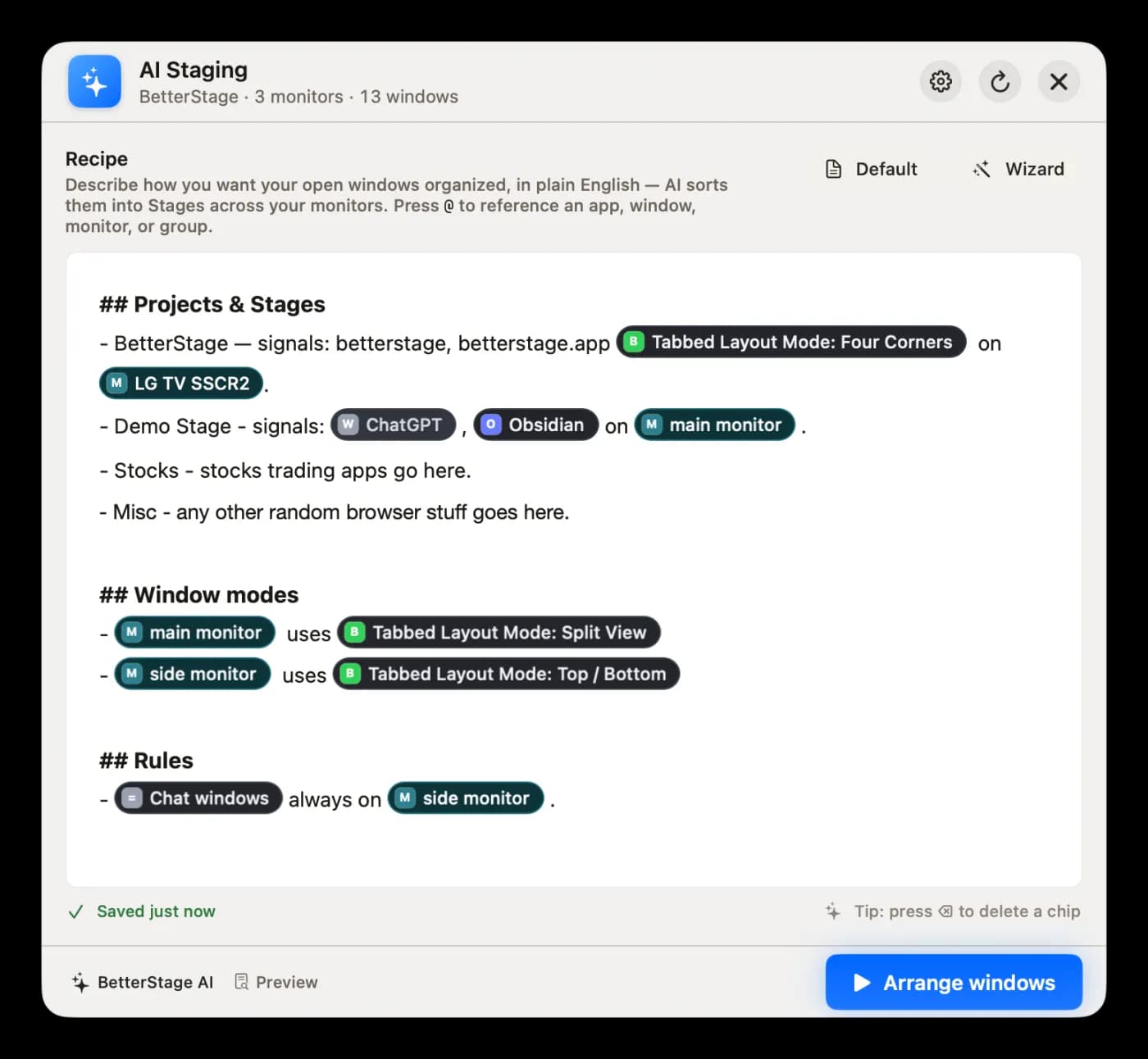
Step by step
- 1
Open the AI Staging panel
Launch the floating AI chat panel from the menu bar or its shortcut. Describe the workspace you want in natural language — name the apps, the task, or the vibe. The more specific, the better the plan.
- 2
Reference apps, windows, and stages with @-mentions
Type @ to insert a chip for a specific app, window, stage, or monitor. This removes ambiguity — "@Figma on monitor 2, @Slack on a Comms stage" — so the AI acts on exactly what you mean.
- 3
Review the proposed plan
The AI returns a structured set of actions — create these stages, move these windows, set these modes. Nothing happens yet. Read the plan in the panel and tweak your prompt if it isn't quite right.
- 4
Apply, then undo if needed
Apply the plan and BetterStage executes every action at once. Don't like the result? The whole thing undoes as a single step, putting your windows back exactly as they were.
- 5
Save repeatable setups as Recipes
Turn a good prompt into a saved Recipe so you can recreate a setup later. Keep multiple Recipes for different workflows, choose a default, or use the {{mode:…}} syntax to pin a layout mode. Connect your preferred provider — including local servers — in settings.
Tips
- AI Staging is provider-agnostic: it works with OpenAI- and Anthropic-compatible providers, including local model servers, so you can keep everything on-device if you prefer.
- Start broad, then refine — describe the goal first, then add @-mention chips for the specific windows the plan got wrong.
Frequently asked questions
Does AI Staging move my windows without asking?
No. It proposes a plan you review in the panel first. Windows only move when you apply it, and the entire change undoes in one step.
Which AI providers does it support?
AI Staging is provider-agnostic with around 25 OpenAI/Anthropic-compatible presets, including local servers. You connect your own provider and model in settings, or skip the setup entirely with managed BetterStage AI.
Is AI Staging a Pro feature?
Yes. AI Staging is part of Pro, which includes a 10-day free trial. You can bring your own provider API key or run a local model at no extra cost, or use BetterStage AI — the managed option that needs no API key or setup (an optional subscription with a free trial).
Try it yourself
BetterStage is free for up to three stages with full snap zones, and includes a 10-day trial of every Pro feature — AI Staging, Bento Box auto-tiling, Tabbed Layouts, and Pinned Displays.
Download BetterStageRelated tutorials
Build an Auto-Tiling Coding Layout with Bento Box
Turn a monitor into an auto-tiling grid — every new window snaps into place.
Separate Work and Personal Apps with Stages
Keep work and personal apps in separate stages so you can switch off cleanly.
Set Up a Developer Workspace on Mac
Editor, terminal, browser, and docs arranged across stages with per-monitor auto-tiling.