Tutorials / By Role & Use Case
Organize Multiple Monitors into Focused Workspaces
Multiple monitors multiply both your screen space and your window chaos. BetterStage treats all your displays as one stage, but lets each monitor run its own layout — and lets you pin a monitor so it never changes when you switch stages. This tutorial sets up a clean multi-display workflow.
Step by step
- 1
Understand how stages span monitors
A stage spans all your monitors at once — switching a stage swaps the windows on every display together. That keeps a project's windows grouped across screens instead of scattering them per-monitor like Spaces does.
- 2
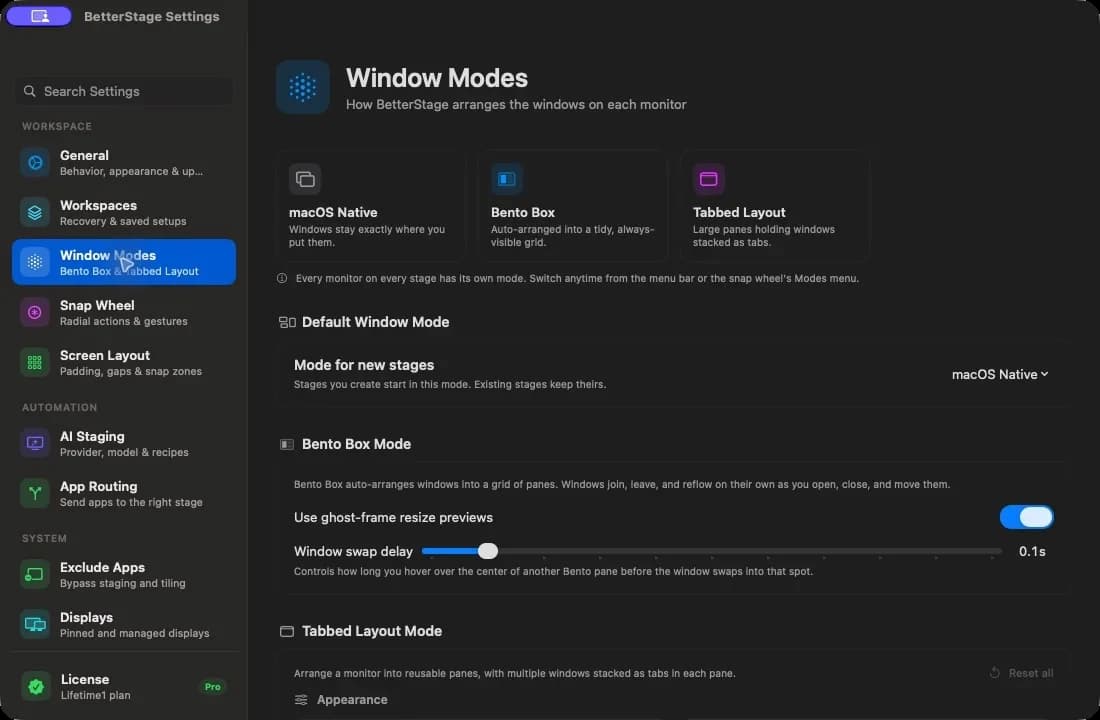
Give each monitor its own Window Mode
Set each display independently: Bento Box auto-tiling on your main screen, Tabbed Layout for reference on a second, macOS Native on a third. Each monitor keeps its mode across stage switches.
- 3
Pin a monitor that should never change
If one monitor always shows the same thing — a chat window, a dashboard, a music app — pin it. Pinned displays keep their windows fixed while you switch stages on the other monitors, so your always-on screen stays put.
- 4
Let layouts survive unplugging
BetterStage identifies monitors by vendor/model/serial, not just display ID, so when you dock and undock a laptop the right stage layouts return automatically. Nicknames make each display easy to recognize in settings.
Tips
- Use a pinned secondary monitor for a Comms or dashboard view so notifications and metrics are always visible regardless of the active stage.
- If a display doesn't reappear correctly after waking from sleep, BetterStage's wake-stability detection waits for displays to settle before restoring layouts.
Frequently asked questions
Does switching a stage move windows on every monitor?
Yes — a stage spans all displays, so switching swaps the windows on every monitor together. Pin a monitor if you want it to stay unchanged.
What is a pinned monitor?
A pinned display keeps its windows fixed across stage switches. It's ideal for an always-on screen — chat, a dashboard, or a reference doc — while your other monitors change with the active stage.
Will my layout come back after I undock my laptop?
Yes. BetterStage matches monitors by identity (vendor, model, serial) rather than transient display IDs, so it restores the correct per-topology layout when monitors reconnect.
Try it yourself
BetterStage is free for up to three stages with full snap zones, and includes a 10-day trial of every Pro feature — AI Staging, Bento Box auto-tiling, Tabbed Layouts, and Pinned Displays.
Download BetterStageRelated tutorials
Set Up a Developer Workspace on Mac
Editor, terminal, browser, and docs arranged across stages with per-monitor auto-tiling.
Get the Most Out of an Ultrawide Monitor
Carve a super-wide screen into readable columns with thirds, auto-tiling, and presets.
Replace macOS Spaces with Stages
Move from unnamed, slow-animating Spaces to named stages that switch instantly.